
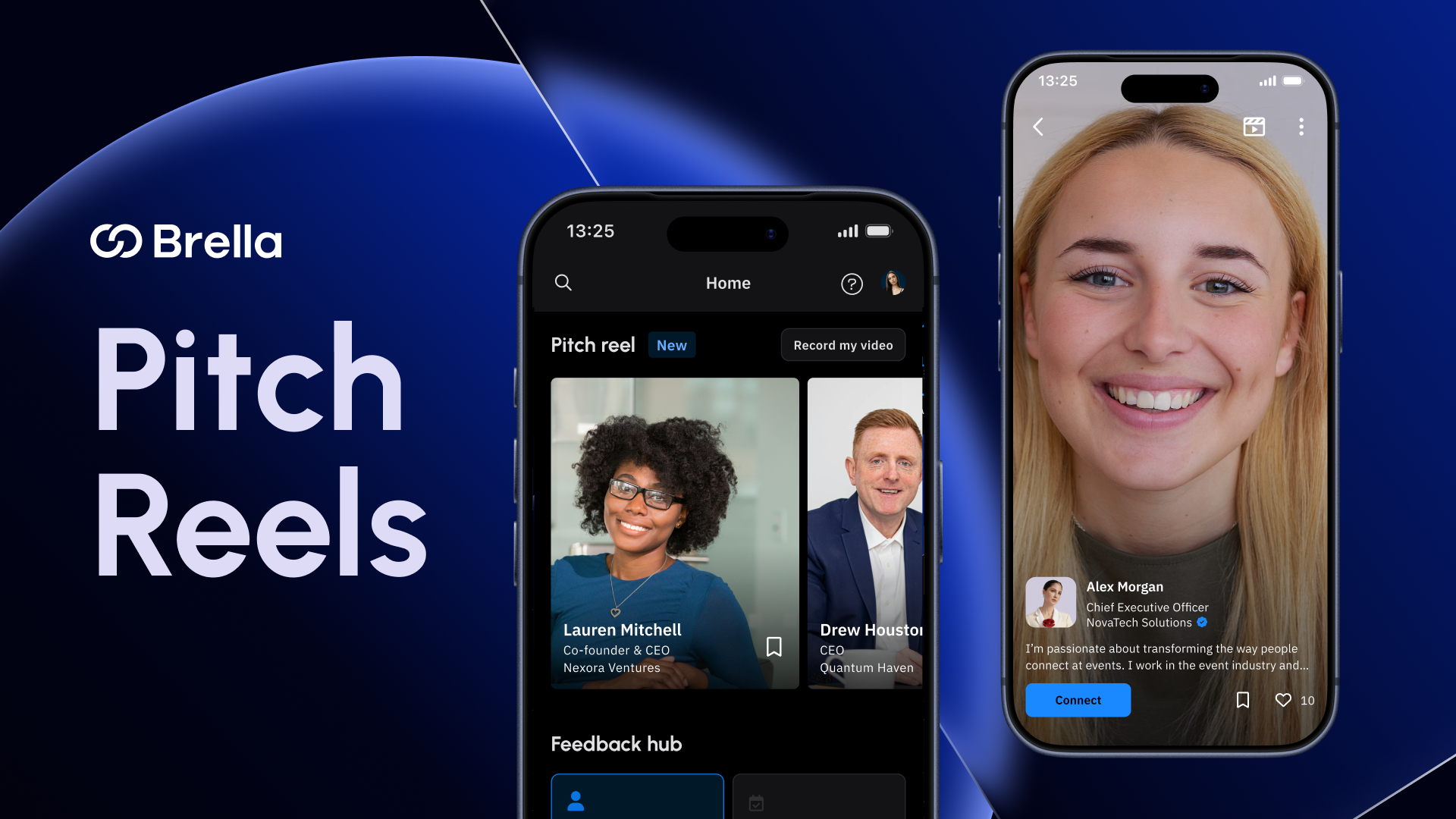
Pitch Reels
Attendees submit short videos to your event, with moderation controls and the ability to pin the ones that matter.
Admin Panel
Feature setup
- Enable/disable Pitch Reels per event.
- Custom feature name and CTA
- Admins can rename the feature (e.g., Pitch Reels, Sponsor Spotlight, Elevator Challenge).
- Upload permissions by group
- Admins can control which groups are allowed to upload videos. Users without permission won’t see the
Add videoCTA.
- Admins can control which groups are allowed to upload videos. Users without permission won’t see the
- Viewing permissions
- Video visibility follows existing event gating rules.
- If Group A can network with Group B, they can view Group A's pitch reels. If not, the reels are not visible.
- Pre-upload message (setting) (Show/ Don't show)
- Admins can add a message shown to users before uploading a video.
- This can be used to share video guidelines, policies, or recording tips.
- Moderation contact
- Event Organizers can assign a moderation contact from the Event or Org admins. These people receive email notifications when a video is reported, with a link to review it.
- Pinning videos
- Admins can pin up to 5 videos, which are shown first to attendees. This allows Event Organizers to control which pitch reels are most visible via the Admin Panel.
Video management
- Admins can:
- View all videos in the Admin Panel
- Hide videos (does not restrict future uploads)
- Delete a video and block the uploader from future uploads
- Mute reports for a video (no further report notifications for that video). Use case: ads or content the EO considers acceptable.
- Report notifications logic
- An email is sent to the moderation contact for each report, up to a maximum of 10 reports per video.
- If a video receives more than 10 reports, no additional notification emails will be sent for that video.
Data & Metrics
Feature-level metrics:
- Total views
- Reach (number of unique users who watched at least one pitch reel)
- Total likes
- Admins can export a CSV showing who liked each video, one big csv with all the videos and all likes.
Per-video metrics:
- Total views
- Unique viewers
- Likes (number only)
Mobile App
If enabled, Pitch Reels appear on:
- The Home page
- User profiles
Tapping a reel on HP opens a full-screen, vertical feed (Instagram-style), allowing users to swipe between videos.
Order of the videos:
- Pinned videos
- Newest videos
- Watched videos, move to the end of the list
Users can:
- Watch videos (respecting gating rules)
- Like videos
- Report videos using one of three reasons:
- I just don’t like it
- Misleading or false information
- Inappropriate content
Uploading rules:
- Upload or record videos up to 30 seconds
- Each user can have only one active video
- To upload a new video, the existing one must be deleted
Admins can:
- Report videos
- Hide videos for all users
- Delete videos and block uploaders from future uploads
Uploader experience:
- Users can choose a video from their gallery or record a new one, up to 30 seconds.
- Captions can be added to both uploaded and recorded videos.
- Uploaders can:
- View their own video on their profile
- They can see the number of likes, but not who liked the video
- They can delete their own video at any time